Your clients can order and pay without calling you
Every reorder phone call, every "can you resend that invoice" email, every "where's my order" text. It adds up. Statim ERP gives your clients their own portal to browse your catalog, place orders, track statuses, and pay invoices online. They get answers instantly. Your team gets their time back.
Self-service for your clients. Less back-and-forth for your team.
Orders flow straight into your ERP
Clients browse your catalog, add items to cart, and place orders. Those orders land in your system with the correct pricing, taxes, and client details already applied. No rekeying. No errors.
Invoices and payments, handled online
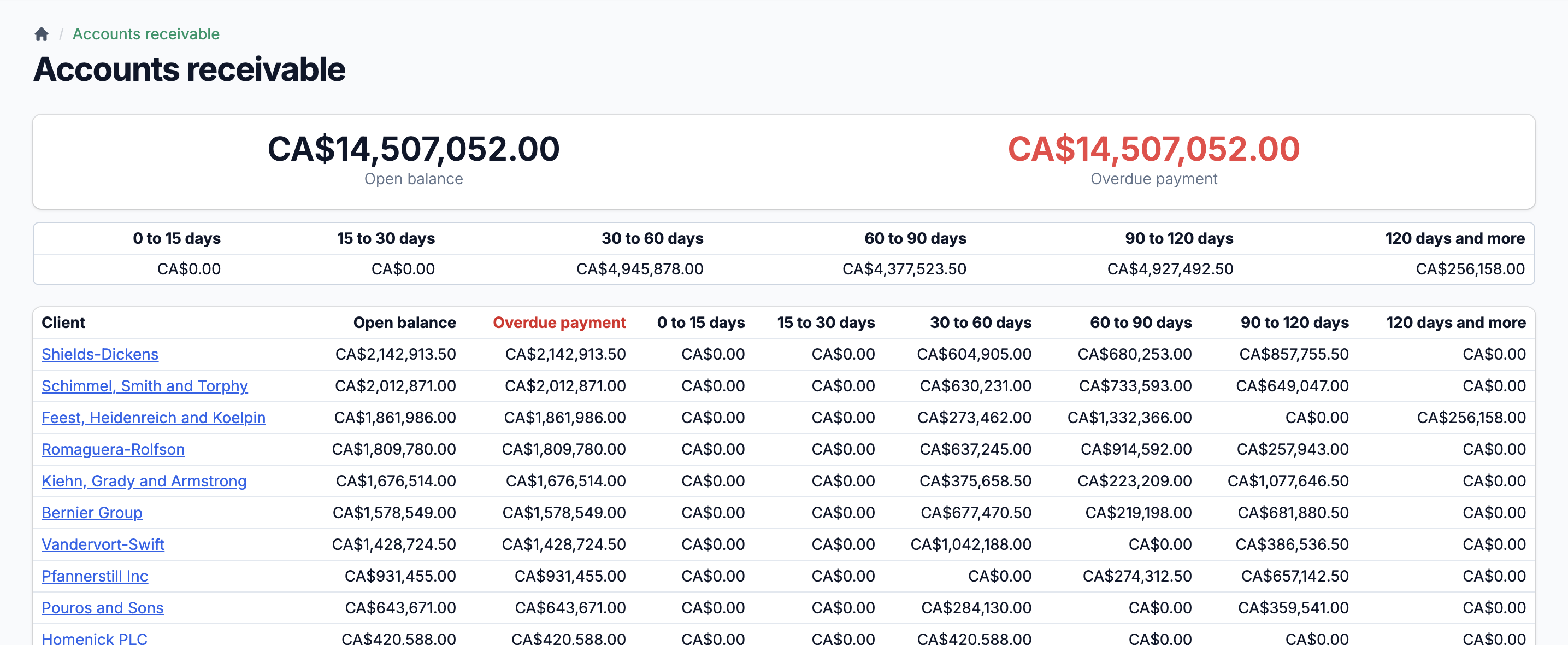
Your clients view open invoices, see what's overdue, and pay by credit card through Clover. Payment receipts generate automatically. Your accounts receivable updates in real time.
You control the access
Two client user roles: Admin and Employee. You decide who logs in, what they see, and whether they can place orders or just view history. Suspend a client account with one toggle.
A product catalog with your pricing, not a generic storefront
Your clients don't need another B2C shopping experience. They need to see their items, at their negotiated prices, and reorder in 30 seconds. The client portal store shows each client only what's relevant to them: your full available catalog, their exclusive items, and pricing that reflects their specific agreements.
Client-specific pricing built in
Each client can have custom prices set through ClientItem records. When they log in, they see their price, not the default list price. If a client has a negotiated discount, it applies automatically at the line level.
Exclusive items for specific clients
Mark items as exclusive to a client. Those items appear in a dedicated "Exclusive Items" tab in the store, visible only to that client. Useful for private-label products, custom formulations, or contract-specific inventory.
Filters that make sense for reordering
Clients filter by item category, subcategory, and item type. A "Buyer's Profile" toggle shows only items they've ordered before. For a client who reorders the same 40 items every week, that's a 5-minute task instead of scrolling through hundreds.
From cart to confirmed order in under a minute
The cart shows every item with its image, SKU, quantity, unit price, and line total. Clients adjust quantities inline, remove items, and see the subtotal update immediately. Before checkout, they pick a shipping date from your allowed delivery days and add optional notes. One click, and the order is created in your ERP with the right status, the right source tag, and the right notification sent to your team.
Daily Pricing Support
Some items have prices that change daily. The portal handles this gracefully: clients see a "Daily Price" label instead of a stale number, and your team sets the final price when the order is confirmed.
Multi-Currency Pricing
Each client has a currency setting. The portal converts prices automatically using your current exchange rates. International clients see amounts in their currency. Your books stay in yours.
UOM-Aware Quantities
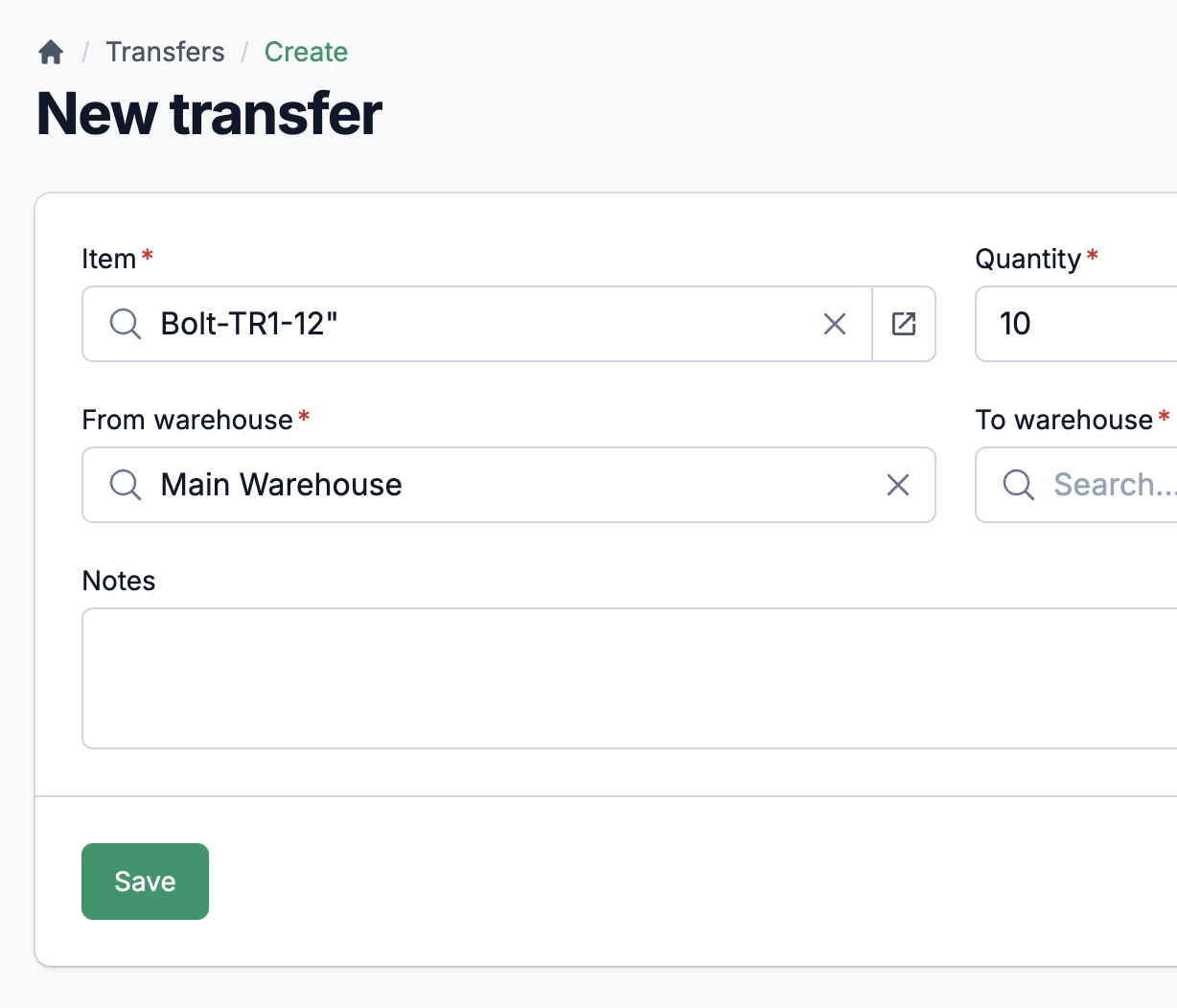
Quantities in the cart use the item's sale UOM. If you sell by the case but track by the unit, the conversion happens behind the scenes. Clients enter what makes sense to them.
Current orders and history, separated cleanly
The orders page has two tabs. "Current Orders" shows everything in progress: new, accepted, and ready. "Order History" shows completed and cancelled orders. Unpaid completed orders are flagged with a count badge so nothing gets missed.
Status badges your clients understand
Internally, your orders move through 4 statuses: new, accepted, ready, and completed. The portal simplifies this. Clients see "In Progress" for anything not yet completed, and "Completed" when it's done. Paid and unpaid badges appear on completed orders.
Order details with PDF download
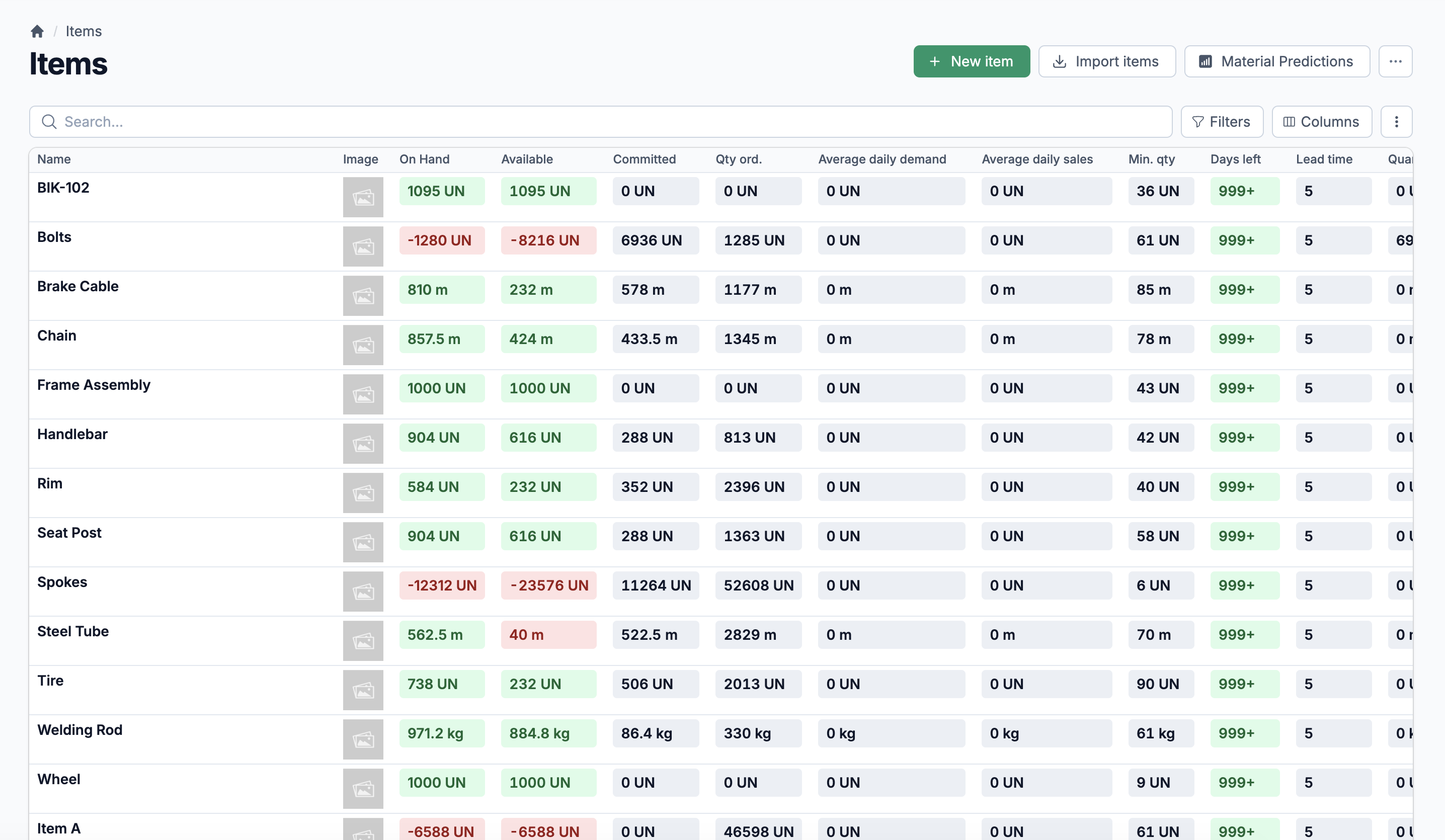
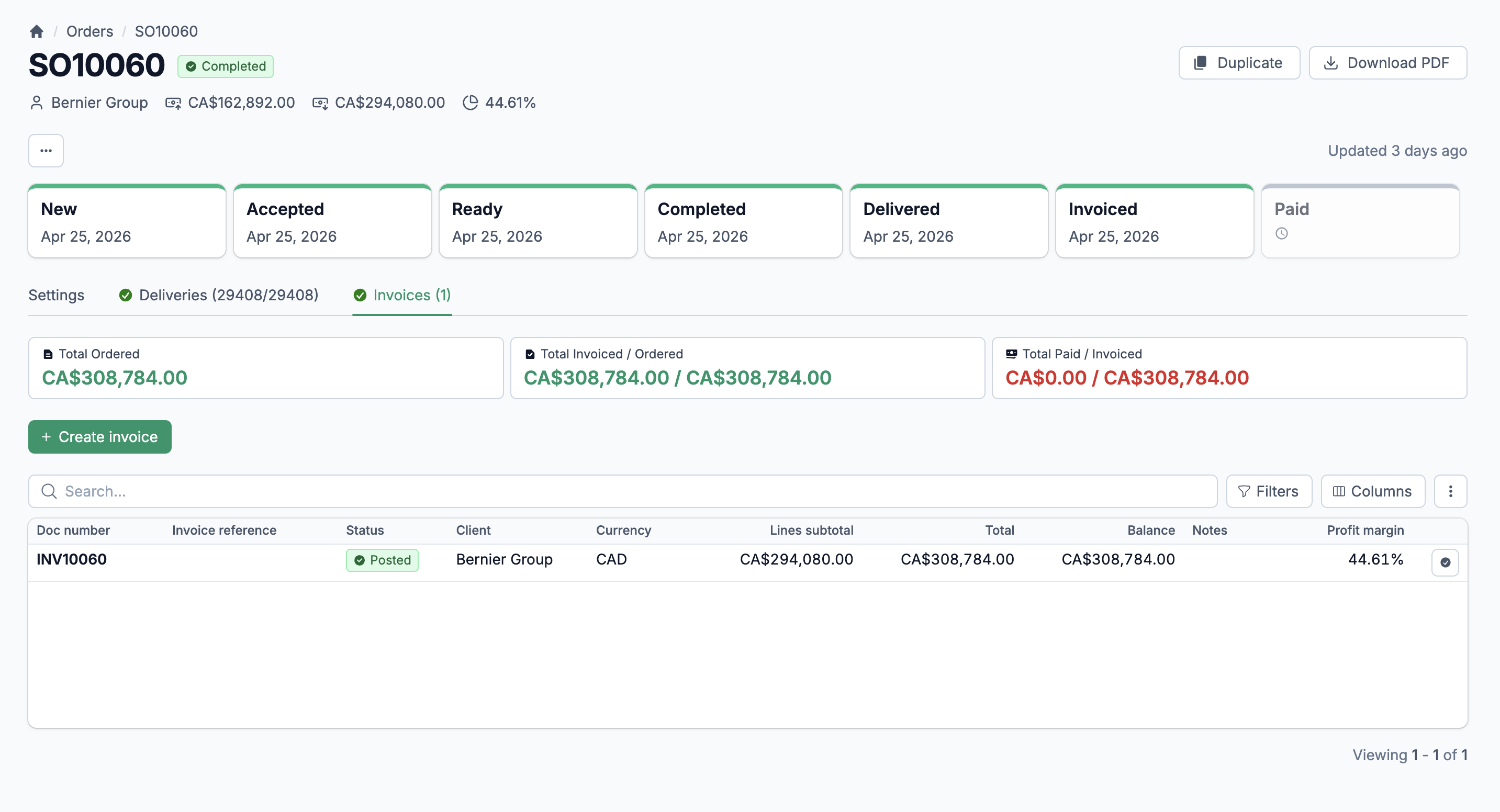
Clients open any order to see line items, addresses, taxes, totals, linked invoices, and public notes. They can download the order as a PDF. If the order has invoices attached, those are visible too, with a direct link to pay.
Your clients pay invoices online. You stop chasing checks.
The portal gives clients a full invoice section with two views: open and paid. Open invoices show the balance, due date, and an overdue badge when applicable. Clients click "Pay," enter a credit card or use their saved card, and the payment processes through Clover in seconds. The receipt generates automatically and the invoice balance updates immediately.
Saved payment methods
Clients save a credit card to their account through Clover's tokenized storage. On the next invoice, they pay with one click. They can update or delete their card at any time from the Billing page.
Payment receipts on every transaction
Every successful payment generates a downloadable PDF receipt. Failed payments are recorded too, with status badges so clients know exactly what happened. Your team sees the same payment history in the admin.
Current balance always visible
The orders and invoices pages both display the client's current account balance at the top. No need to ask your accounting team "how much do we owe?" The number is always there.
Two roles. Full control over who sees what.
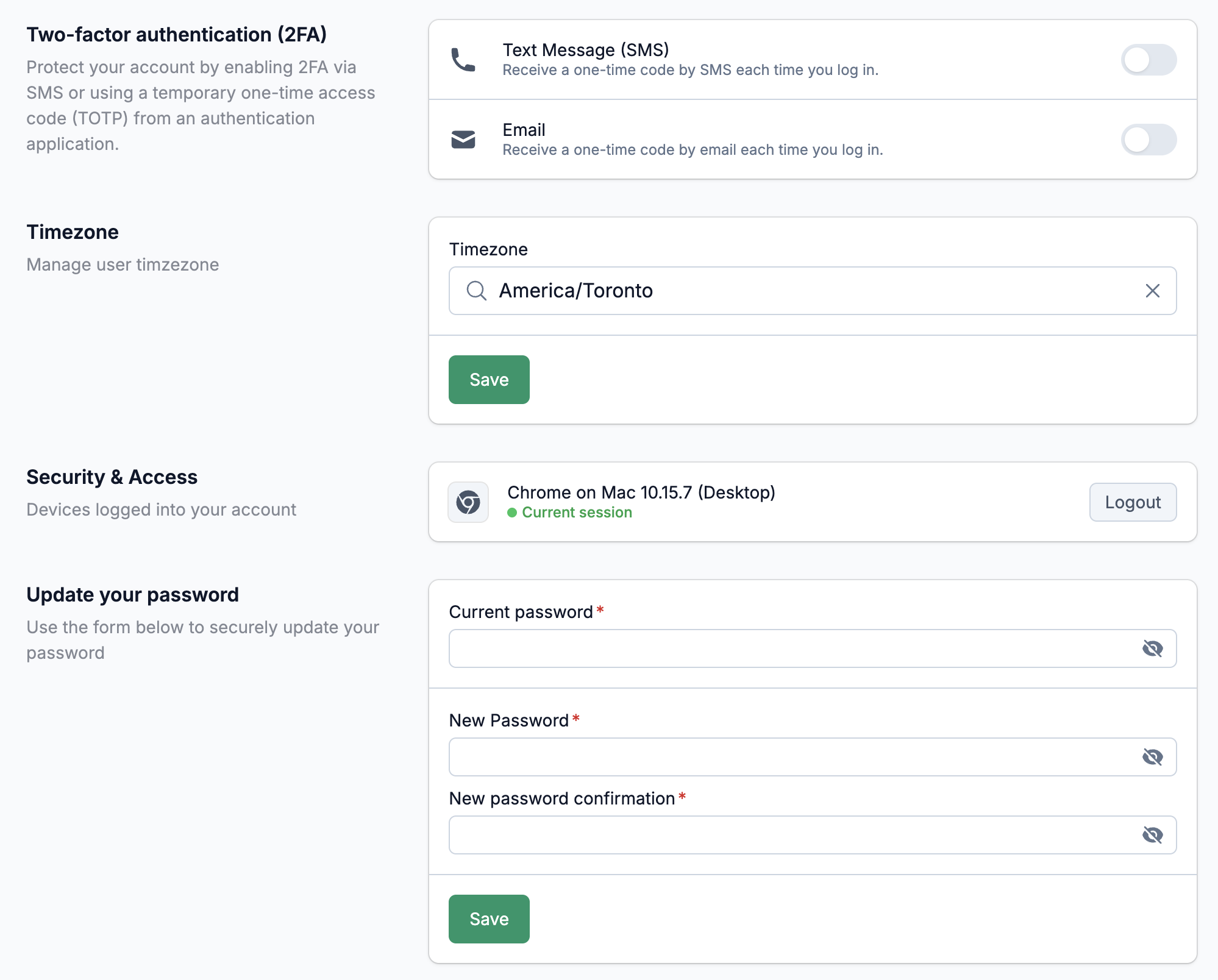
Every client portal user belongs to a client and has a role: Admin or Employee. Admins can manage payment methods and place orders. Employees can browse and view history. You assign roles when creating users, and you can suspend any client account instantly. Suspended clients see a clear message and cannot access the portal until you reactivate them. The portal is protected by a dedicated permission: client portal access. Users without it never see the portal routes. Two-factor authentication is available for every portal account, with SMS and email verification options.
Your portal. Your logo. Your name.
The client portal displays your company logo and name in the navigation bar. A branded color accent runs across the top. When clients log in, they see your business, not a generic software interface. You configure the logo and company details in your settings. The portal picks them up automatically.